As an Amazon Associate, we earn from qualifying purchases. Some links on this site are affiliate links at no extra cost to you. Our recommendations are based on thorough research and editorial judgment.

Why 4K Playback Stutters: Cpu/Gpu Decode and Codec Factors

When experiencing stuttering during 4K playback, it’s often due to the limitations of our CPU and GPU in decoding high-bitrate video formats. A powerful CPU is essential for handling complex files, while the GPU’s capabilities are critical for rendering visual elements, especially with demanding codecs like HEVC (H.265). Outdated hardware or insufficient resource allocation can exacerbate playback issues, highlighting the importance of codec compatibility in ensuring smooth viewing. Our exploration of these factors will reveal further solutions to enhance your experience.
Key Takeaways
- High CPU usage near 100% can occur with high-bitrate 4K content, leading to playback stuttering.
- Older GPUs might lack support for hardware decoding of demanding codecs like HEVC, causing dropped frames.
- Resource limitations on the system can impact VLC’s performance, requiring background tasks to be closed for smoother playback.
- Incompatible or outdated codecs can overload the CPU and disrupt the smooth playback of 4K videos.
- Upgrading hardware, especially the CPU and GPU, can significantly enhance 4K playback quality and reduce stuttering.
Easy Tips to Optimize VLC Settings for 4K Playback
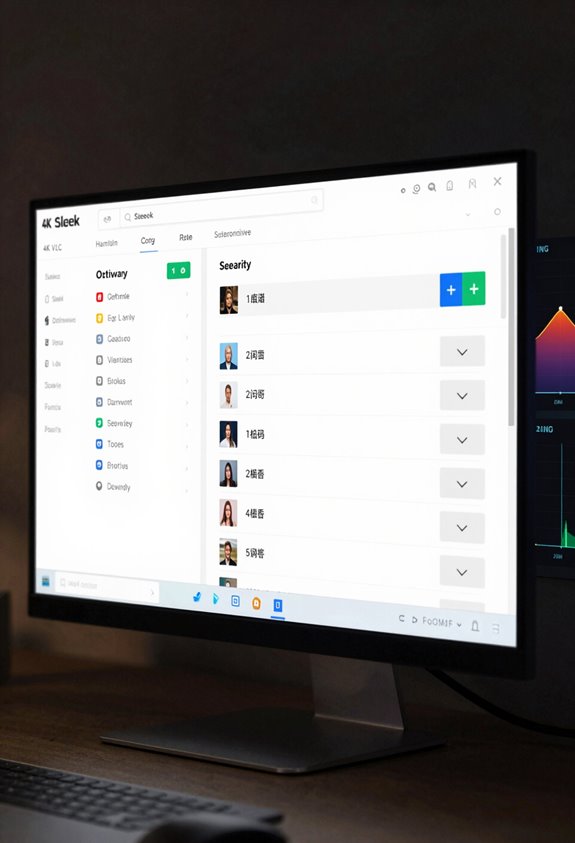
Hey there! If you’re looking to enjoy 4K video playback with VLC, it’s super important to make sure your settings are optimized to get the best performance possible. Start by checking that you’ve got the latest version of VLC installed. This version comes with tweaks that really help improve how videos play back.
Next, let’s make a small but effective change: head to Tools > Preferences > Input/Codecs and adjust the caching value to 1000 ms. This means VLC will collect more data before starting the video, which helps prevent annoying gaps or stuttering during playback. Also, don’t forget to enable hardware acceleration! By doing this, you’re letting your computer’s graphics card do some of the heavy lifting, which takes the pressure off your CPU and usually leads to smoother playback.
As you watch different 4K videos, pay attention to whether any hiccups are linked to specific video formats. If you notice certain videos aren’t playing nicely, exploring external codec packs might be worth your while—these can help with compatibility and make your viewing experience way smoother. With those settings fine-tuned, you’re on your way to enjoying those stunning 4K visuals! To further enhance your experience, consider how codec compatibility impacts playback smoothness and stability. What’s next on the agenda? Let’s explore how VLC handles subtitles and audio settings!
Common Causes of 4K Video Stuttering
You know, optimizing VLC settings can really boost your 4K video playback experience, but it’s also crucial to get a grip on what often causes that pesky video stuttering. A big culprit is high CPU usage, which can spike close to 100% when you’re trying to play high bitrate 4K content—you’ll notice this especially with more demanding codecs like H.265/HEVC. For instance, if you’re streaming a 4K movie on an older computer, it might struggle to keep up, resulting in those frustrating moments of lag.
Another common issue is your GPU’s performance. Many older graphics cards just can’t handle the hardware decoding for newer codecs, which can lead to dropped frames—basically, your video stutters as it tries to catch up. If you’re running VLC on a system with limited resources, consider upgrading your GPU or freeing up some CPU power by closing unnecessary background tasks.
Software conflicts also play a role. If your media player is outdated, it might not take full advantage of hardware acceleration, which is crucial for smooth playback. Plus, remember that certain codecs, like AV1 and HEVC, are pretty resource-hungry; they need a good amount of power from both your CPU and GPU to run smoothly. So, if you’re finding your system isn’t scaling well with these formats, it might be time for an upgrade or a different approach altogether. Let’s jump into some practical ways to tackle these issues and get your video playing seamlessly again! Additionally, enabling digital anti-shake technology in your playback device can sometimes help mitigate visual distractions caused by stuttering.
How CPU and GPU Performance Affects 4K Playback Quality
Hey! So, let’s chat about how CPU and GPU performance really impacts the quality of 4K video playback. You see, the CPU is like the brain of your computer; it decodes those complex video files. If it’s not powerful enough, you’re likely to face some annoying stuttering or lag when trying to watch 4K content, which needs way more processing power than standard HD videos.
On the other hand, the GPU plays a crucial role too. It’s responsible for handling visuals and is especially important when we’re dealing with modern codecs like HEVC (H.265). This codec requires some serious hardware acceleration. If our GPU is under strain, especially with high-bitrate 4K files, you can expect some frame drops during playback. For instance, if you’re watching a 4K movie with rich graphics, and your GPU can’t keep up, those dropouts can really take you out of the experience. Devices like the Panasonic HC-X1500 improve playback quality through features such as high bitrate 4K recording and hybrid stabilization, which place demands on CPU/GPU decoding capabilities.
Why Codec Compatibility Is Important for 4K Video Playback?
Codec compatibility is super important when it comes to enjoying 4K video without a hitch. Think of it this way: the codec is like a translator for your video files, telling your hardware and software how to handle those high-resolution formats. If you want to watch a beautifully shot movie in 4K, you’ll usually encounter codecs like HEVC (H.265) or VP9. These codecs are great but can be pretty demanding on your system.
For example, if your media player isn’t updated to support HEVC, your powerful computer might find itself struggling, cranking up the CPU usage as it tries to keep up. That can lead to annoying playback stutters, making your movie night less enjoyable. By updating our media players, we can greatly improve performance. Using the right codec can really lighten the load on your system, reducing lag and making everything flow smoothly—especially critical for those high-bitrate files.
Additionally, ensuring your connection supports sufficient bandwidth is essential to transmit high-resolution codecs effectively without interruptions.
Addressing Hardware Limitations for Better 4K Playback
Hey there! If you’re into watching 4K content, you probably already know how stunning it can look. But, let’s face it, sometimes your hardware can get in the way of that experience. For instance, many older graphics cards just can’t handle the HEVC decoding that modern 4K videos require. This can lead to your CPU doing all the heavy lifting, which results in annoying stutters and lag during playback.
To really enjoy 4K smoothly, I’d suggest looking into a dedicated graphics card with at least 4GB of VRAM. This makes a big difference! For example, a card like the NVIDIA GTX 1650 can handle most 4K content quite well. Plus, if you upgrade to a newer CPU that has integrated graphics supporting codecs like VP9 and AV1, you’ll really notice an improvement.
Also, don’t forget to check your media player settings! Enabling hardware acceleration can significantly lighten the load on your CPU. This little tweak can make your viewing experience much smoother, helping you focus on enjoying your favorite shows or movies without interruptions. Now, let’s talk about how to choose the right settings for your specific setup!
For the best overall viewing performance, consider the connectivity options on your setup to enable fast and stable content transfer and external hardware support.
Best VLC Alternatives for 4K Video Playback
If you’re on the hunt for the best VLC alternatives for 4K video playback, you’re in luck! There are some fantastic media players out there that can really take your viewing experience to the next level, especially if you’re facing issues like stuttering due to hardware limitations.
Take MPC-HC for example—it’s a really lightweight and open-source media player that supports hardware acceleration. This means it can offload some of the heavy lifting to your computer’s hardware, leading to smoother playback. Then there’s Kodi; it’s super versatile and can be customized to fit your needs. Just ensure your hardware is well set up, and it can beautifully manage 4K video streaming.
Another great option is PotPlayer. It supports a ton of codecs and also utilizes hardware acceleration effectively, which helps keep your CPU from getting overwhelmed while still delivering outstanding video quality. If you’re looking for polished visuals, consider CyberLink PowerDVD. Its True Theater technology works wonders on high-resolution screens by enhancing the overall picture quality. And for a more streamlined experience, DivX Player keeps things smooth with its adaptive bitrate technology, making it a reliable choice even for less powerful systems.
Choosing a camera or playback setup with hardware acceleration can significantly reduce stuttering during 4K video playback.
With all these options, you’re bound to find something that fits your needs. So, let’s keep the momentum going—now that you know your alternative options, let’s explore some tips to optimize your 4K video playback!
Frequently Asked Questions
Is Stuttering a GPU or CPU Issue?
Stuttering’s often caused by both GPU bottleneck issues and CPU rendering performance. To tackle this, we can explore stuttering solutions that optimize our hardware, ensuring a smoother 4K playback experience with less frustration.
Is CPU or GPU Better for Video Encoding?
When it comes to video encoding, we’ve found GPUs are typically better, thanks to hardware acceleration. While CPUs excel under software limitations, GPUs deliver superior encoding efficiency, rapidly processing complex tasks while managing the heavy lifting.
Which Codec for 4K?
For 4K, we recommend H.265 for its efficiency, but if we prioritize compatibility, H.264’s still reliable. VP9 offers great performance, while AV1’s adoption is growing. We should consider our hardware before choosing.
Does Video Playback Use GPU or CPU?
It is understood that video playback gracefully dances between CPU and GPU acceleration. With proper hardware requirements, our video quality can soar, creating seamless experiences. Let’s embrace the power of GPU to elevate our viewing adventures together!


